Overview
Introduction to scripting in After Effects
A script is a series of commands that tells an application to perform a series of operations. You can use scripts in most Adobe applications to automate repetitive tasks, perform complex calculations, and even use some functionality not directly exposed through the graphical user interface. For example, you can direct After Effects to reorder the layers in a composition, find and replace source text in text layers, or send an e-mail message when rendering is complete. See “Examples” on page 191 for examples of what scripts can do.
Although both the After Effects expressions language and the After Effects ExtendScript scripting language are based on JavaScript, the expressions features and scripting features of After Effects are separate and distinct. Expressions cannot access information from scripts (such as variables and functions). Whereas a script tells an application to do something, an expression says that a property is something. However, because the After Effects expression language and ExtendScript are both based on JavaScript, familiarity with either one is very helpful in understanding the other.
The heart of a scriptable application is the object model. When you use Adobe After Effects, you create projects,compositions, and render queue items along with all of the elements that they contain: footage, images, solids,layers, masks, effects, and properties. Each of these items, in scripting terms, is an object. This guide describesthe ExtendScript objects that have been defined for After Effects projects.
The After Effects object model is composed of a project, items, compositions, layers, and render queue items. Each object has its own special attributes, and every object in an After Effects project has its own identity (although not all are accessible to scripting). You should be familiar with the After Effects object model in order to create scripts.
NOTE: JavaScript objects normally referred to as “properties” are consistently called “attributes” in this guide, to avoid confusion with After Effects’ own definition of a property (an animatable value of an effect, mask, or transform within an individual layer).
Nearly all of what scripting can accomplish replicates what can be done by means of the After Effects graphical user interface. A thorough knowledge of the application itself and its graphical user interface is essential to understanding how to use scripting in After Effects.
The ExtendScript language
After Effects scripts use the Adobe ExtendScript language, which is an extended form of JavaScript used by several Adobe applications, including Photoshop, Illustrator, and InDesign. ExtendScript implements the JavaScript language according to the ECMA-262 specification. The After Effects scripting engine supports the 3rd Edition of the ECMA-262 Standard, including its notational and lexical conventions, types, objects, expressions, and statements. ExtendScript also implements the E4X ECMA-357 specification, which defines access to data in XML format.
ExtendScript defines a global debugging object, the dollar ($) object, and a reporting utility for ExtendScript elements, the ExtendScript Reflection interface.
File and Folder Objects: Because path name syntax is very different in different operating systems, Adobe ExtendScript defines File and Folder objects to provide platform-independent access to the underlying file system.
ScriptUI User Interface Module: The ExtendScript ScriptUI module provides the ability to create and interact with user interface elements. ScriptUI provides an object model for windows and UI control elements that you can use to create a user interface for your scripts.
Tools and Utilities: In addition, ExtendScript provides tools and features such as a localization utility for providing user-interface string values in different languages and global functions for displaying short messages in dialog boxes (alert, confirm, and prompt).
External Communication: ExtendScript provides a Socket object that allows you to communicate with remote systems from your After Effects scripts.
Interapplication Communication: ExtendScript provides a common scripting environment for all Adobe applications, and allows interapplication communication through scripts.
The ExtendScript Toolkit (ESTK)
After Effects includes a script editor and debugger, the ExtendScript Toolkit (ESTK), which provides a conve- nient interface for creating and testing your own scripts.
To start the ESTK, choose File > Scripts > Open Script Editor.
If you choose to use another text editor to create, edit, and save scripts, be sure to choose an application that does not automatically add header information when saving files and that saves with Unicode (UTF-8) encoding. In many text editors, you can set preferences for saving with UTF-8 encoding. Some applications (such as Microsoft Word) by default add header information to files that can cause “line 0” errors in scripts, causing them to fail.
For detailed information on the ExtendScript Toolkit, see the JavaScript Tools Guide.
The .jsx and .jsxbin file-name extensions
ExtendScript script files are distinguished by the .jsx file-name extension, a variation on the standard .js extension used with JavaScript files. After Effects scripts must include the .jsx file extension in order to be properly recognized by the application. Any UTF-8-encoded text file with the .jsx extension is recognized as an ExtendScript file.
You can use the ExtendScript Toolkit to export a binary version of an ExtendScript file, which has the extension .jsxbin. Such a binary file may not be usable with all of the scripting integration features in After Effects.
Activating full scripting features
The default is for scripts to not be allowed to write files or send or receive communication over a network. To allow scripts to write files and communicate over a network, choose Edit > Preferences > General (Windows) or After Effects > Preferences > General (Mac OS), and select the Allow Scripts To Write Files And Access Network option.
Any After Effects script that contains an error preventing it from being completed generates an error message from the application. This error message includes information about the nature of the error and the line of the script on which it occurred. The ExtendScript Toolkit (ESTK) debugger can open automatically when the application encounters a script error. This feature is disabled by default so that casual users do not encounter it. To activate this feature, choose Preferences > General, and select Enable JavaScript Debugger.
Loading and running scripts
Running scripts directly from the File > Scripts menu
When After Effects starts, it searches the Scripts folder for scripts to load. Loaded scripts are available from the File > Scripts menu.
To run a loaded script, choose File > Scripts > [script name].
If you edit a script while After Effects is running, you must save your changes for the changes to be applied. If you place a script in the Scripts folder while After Effects is running, you must restart After Effects for the script to appear in the Scripts menu, though you can immediately run the new script using the Run Script File command.
Running scripts using File > Scripts > Run Script File
To run a script that has not been loaded, choose File > Scripts > Run Script File, locate and select a script, and click Open.
Running scripts from the command line, a batch file, or an AppleScript script
If you are familiar with how to run a script from the command line in Windows or via AppleScript, you can send a script directly to the open After Effects application, so that the application automatically runs the script. To run a script from the command line, call afterfx.exe from the command line. Use the -r switch and the full path of the script to run as arguments. This command does not open a new instance of the After Effects application; it runs the script in the existing instance.
Example (for Windows):
afterfx -r c:\script_path\example_script.jsx
You can use this command-line technique—together with the software that comes with a customizable keyboard—to bind the invocation of a script to a keyboard shortcut.
Following are examples of Windows command-line entries that will send an After Effects script to the application without using the After Effects user interface to execute the script.
In the first example, you copy and paste your After Effects script directly on the command line and then run it. The script text appears in quotation marks following the afterfx.exe -s command:
afterfx.exe -s "alert("You just sent an alert to After Effects")"
Alternatively, you can specify the location of the JSX file to be executed. For example:
afterfx.exe -r c:\myDocuments\Scripts\yourAEScriptHere.jsx
afterfx.exe -r "c:\myDocuments\Scripts\Script Name with Spaces.jsx"
How to include After Effects scripting in an AppleScript (Mac OS)
Following are three examples of AppleScript scripts that will send an existing JSX file containing an After Effects script to the application without using the After Effects user interface to execute the script. In the first example, you copy your After Effects script directly into the Script Editor and then run it. The script text appears within quotation marks following the DoScript command, so internal quotes in the script must be escaped using the backslash escape character, as follows:
tell application "Adobe After Effects CS6"
DoScript "alert(\"You just sent an alert to After Effects\")"
end tell
Alternatively, you could display a dialog box asking for the location of the JSX file to be executed, as follows:
set theFile to choose file
tell application "Adobe After Effects CS6"
DoScript theFile
end tell
Finally, this script is perhaps most useful when you are working directly on editing a JSX script and want to send it to After Effects for testing or to run. To use it effectively you must enter the application that contains the open JSX file (in this example it is TextEdit); if you do not know the proper name of the application, type in your best guess to replace “TextEdit” and AppleScript prompts you to locate it.
Simply highlight the script text that you want to run, and then activate this AppleScript:
(*
    This script sends the current selection to After Effects as a script.
*)
tell application "TextEdit"
set the_script to text of front document
end tell
tell application "Adobe After Effects CS6"
activate
DoScript the_script
end tell
Running scripts automatically during application startup or shutdown
Within the Scripts folder are two folders called Startup and Shutdown. After Effects runs scripts in these folders automatically, in alphabetical order, on starting and quitting, respectively.
In the Startup folder you can place scripts that you wish to execute at startup of the application. They are executed after the application is initialized and all plug-ins are loaded.
Scripting shares a global environment, so any script executed at startup can define variables and functions that are available to all scripts. In all cases, variables and functions, once defined by running a script that contains them, persist in subsequent scripts during a given After Effects session. Once the application is quit, all such globally defined variables and functions are cleared. Be sure to give variables in scripts unique names, so that a script does not inadvertently reassign global variables intended to persist throughout a session.
Attributes can also be added to existing objects such as the Application object (see “Application object” on page 17) to extend the application for other scripts.
The Shutdown folder scripts are executed as the application quits. This occurs after the project is closed but before any other application shutdown occurs.
Running scripts from the Window menu
Scripts in the ScriptUI Panels folder are available from the bottom of the Window menu. If a script has been written to provide a user interface in a dockable panel, the script should be put in the ScriptUI folder. ScriptUI panels work much the same as the default panels in the After Effects user interface.
Instead of creating a Window object and adding controls to it, a ScriptUI Panels script uses the this object that represents the panel. For example, the following code adds a button to a panel:
var myPanel = this;
myPanel.add("button", [10, 10, 100, 30], "Tool #1");
If your script creates its user interface in a function, you cannot use this as it will refer to the function itself, not the panel. In this case, you should pass the this object as an argument to your function. For example:
function createUI(thisObj) {
    var myPanel = thisObj;
    myPanel.add("button", [10, 10, 100, 30], "Tool #1");
    return myPanel;
}
var myToolsPanel = createUI(this);
You cannot use the File > Scripts > Run Script File menu command to run a script that refers to this. To make your script work with either a Window object (accessible from the File > Scripts menu) or a native panel (accessible from the Window menu), check whether this is a Panel object. For example:
function createUI(thisObj) {
    var myPanel = (thisObj instanceof Panel)? thisObj : new Window("palette", "My Tools", [100, 100, 300, 300]);
    myPanel.add("button", [10, 10, 100, 30], "Tool #1");
    return myPanel;
}
var myToolsPanel = createUI(this);
Stopping a running script
A script can be stopped by pressing Esc or Cmd+period (in Mac OS) when the After Effects or the script’s user interface has focus. However, a script that is busy processing a lot of data might not be very responsive.
After Effects scripting reference
This chapter lists and describes JavaScript classes, objects, methods, attributes, and global functions defined by After Effects.
The After Effects scripting engine supports ExtendScript, Adobe’s extended version of JavaScript, which implements the 3rd Edition of the ECMA-262 Standard, including its notational and lexical conventions, types,objects, expressions and statements. For a complete listing of the keywords and operators included withECMAScript, refer to ECMA-262.pdf, available at http://www.ecma-international.org/publications/standards/Ecma-262.htm. For an overview of the most common keywords and statements available from ECMA-262, see “JavaScript keywords and statement syntax” on page 8.
Elements of basic JavaScript relevant to After Effects scripting
JavaScript variables
Scripting shares a global environment, so any script executed at startup can define variables and functions that are available to all scripts. In all cases, variables and functions, once defined by running a script that contains them, persist in subsequent scripts during a given After Effects session. Once the application is quit, all such globally defined variables and functions are cleared. Scripters should be careful about giving variables in scripts unique names, so that a script does not inadvertently reassign global variables intended to persist throughout a session.
JavaScript keywords and statement syntax
Although it is not possible to provide an exhaustive resource describing usage of JavaScript, the following tables provide an overview of keywords, statements, operators, precedence, and associativity. The following table lists and describes all keywords and statements recognized by the After Effects scripting engine.
Table 1 Keywords and Statement Syntax
| Keyword /Statement | Description |
|---|---|
| break | Standard JavaScript; exit the currently executing loop. |
| continue | Standard JavaScript; cease execution of the current loop iteration. |
| case | Label used in a switch statement. |
| default | Label used in a switch statement when a case label is not found. |
| do...while | Standard JavaScript construct. Similar to the while loop, except loop condition evaluation occurs at the end of the loop. |
| false | Literal representing the Boolean false value. |
| for | Standard JavaScript loop construct. |
| for...in | Standard JavaScript construct. Provides a way to easily loop through the properties of an object. |
| function | Used to define a function. |
| if/if...else | Standard JavaScript conditional constructs. |
| new | Standard JavaScript constructor statement. |
| null | Assigned to a variable, array element, or object property to indicate that it does not contain a legal value. |
| return | Standard JavaScript way of returning a value from a function or exiting a function. |
| switch | Standard JavaScript way of evaluating a JavaScript expression and attempting to match the expression’s value to a case label. |
| this | Standard JavaScript method of indicating the current object. |
| true | Literal representing the Boolean true value. |
| undefined | Indicates that the variable, array element, or object property has not yet been assigned a value. |
| var | Standard JavaScript syntax used to declare a local variable. |
| while | Standard JavaScript construct. Similar to the do...while loop, except loop condition evaluation |
| occurs | at the beginning of the loop. |
| with | Standard JavaScript construct used to specify an object to use in subsequent statements. |
Table 2 JavaScript operators
The following tables list and describe all operators recognized by the After Effects scripting engine and show the precedence and associativity for all operators.
| Operators | Description |
|---|---|
| new | Allocate object. |
| delete | Deallocate object. |
| typeof | Returns data type. |
| void | Returns undefined value. |
| . | Structure member. |
| [] | Array element. |
| () | Function call. |
| ++ | Pre- or post-increment. |
| –– | Pre- or post-decrement. |
| - | Unary negation or subtraction. |
| ~ | Bitwise NOT. |
| ! | Logical NOT. |
| * | Multiply. |
| / | Divide. |
| % | Modulo division. |
| + | Add. |
| << | Bitwise left shift. |
| > | > Bitwise right shift. |
| > | >> Unsigned bitwise right shift. |
| < | Less than. |
| <= | Less than or equal. |
| > | Greater than. |
| > | = Greater than or equal. |
| == | Equal. |
| != | Not equal. |
| & | Bitwise AND. |
| ^ | Bitwise XOR. |
| | | Bitwise OR. |
| && | Logical AND. |
| || | Logical OR. |
| ?: | Conditional (ternary). |
| = | Assignment. |
| += | Assignment with add operation. |
| –= | Assignment with subtract operation. |
| *= | Assignment with multiply operation. |
| /= | Assignment with divide operation. |
| %= | Assignment with modulo division operation. |
| <<= | Assignment with bitwise left shift operation. |
| >>= | Assignment with bitwise right shift operation. |
| >>>= | Assignment with unsigned bitwise right shift operation. |
| &= | Assignment with bitwise AND operation. |
| ^= | Assignment with bitwise XOR operation. |
| |= | Assignment with bitwise OR operation. |
| , | Multiple evaluation. |
Table 3 Operator Precedence
| Operators (highest precedence to lowest) | Associativity |
|---|---|
| [], (),. | left to right |
| new, delete, – (unary negation), !, typeof, void, ++, –– | right to left |
| *, /, % | left to right |
| +, – (subtraction) | left to right |
| <<, >>, >>> | left to right |
| <, <=, >, >= | left to right |
| ==, != | left to right |
| & | left to right |
| ^ | left to right |
| | | left to right |
| && | left to right |
| || | left to right |
| ?: | right to left |
| =, /=, %=, <<=, >>=, >>>=, &=, ^=, | =, +=, –=, *= |
| , | left to right |
The After Effects Object Model
As you look through this reference section, which is organized alphabetically by object, you can refer to the following diagrams for an overview of where the various objects fall within the hierarchy, and their correspondence to the user interface.
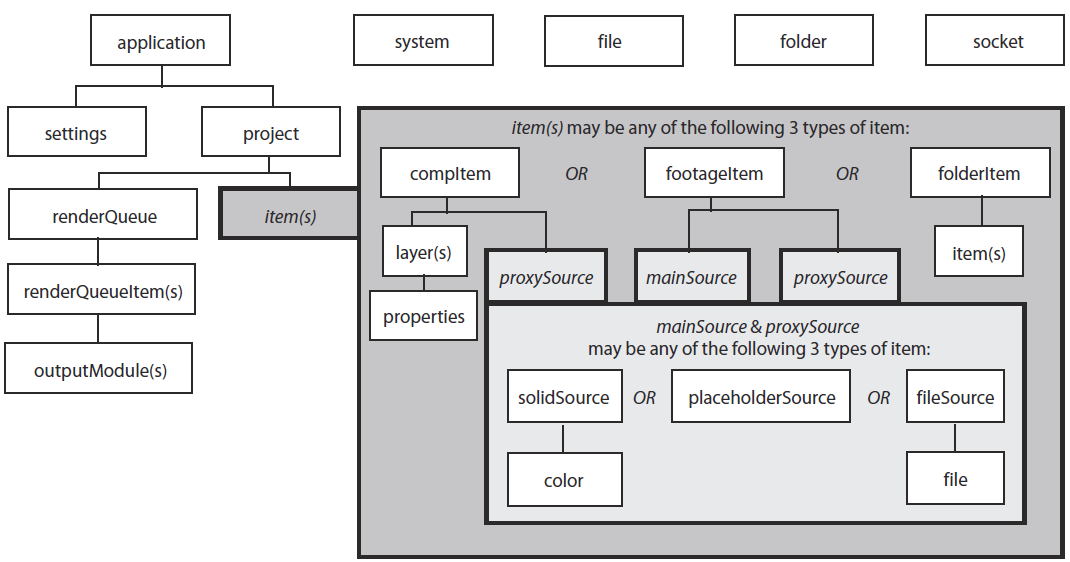
Note that the File, Folder, and Socket objects are defined by ExtendScript, and are documented in the JavaScript Tools Guide. ExtendScript also defines the ScriptUI module, a set of window and user-interface control objects, which are available to After Effects scripts. These are also documented in the JavaScript Tools Guide. The hierarchy of objects in scripting corresponds to the hierarchy in the user interface.
The application contains a Project panel, which displays a project. The project contains compositions, which contain layers. The source for a layer can be a footage file, placeholder, or solid, also listed in the Project panel. Each layer contains settings known as properties, and these can contain markers and keyframes. The render queue contains render-queue items as well as render settings and output modules. All of these entities are represented by objects in scripting. NOTE: To avoid ambiguity, this manual uses the term “attribute” to refer to JavaScript object properties, and the term “property” or “AE property” to refer to After Effects layer properties.